Every course opens with a short "Before you start" page. That page tells you the minimum setup the course needs. It also gives you a checklist. This guide is the full story behind those pages.
The guide covers four things. It explains the three levels of setup. It shows you how to pick a tool without sales pressure. It lists the edge cases that cause real problems. It gives our recommendations. You do not need to memorise it - the per-course checklists are the gate.
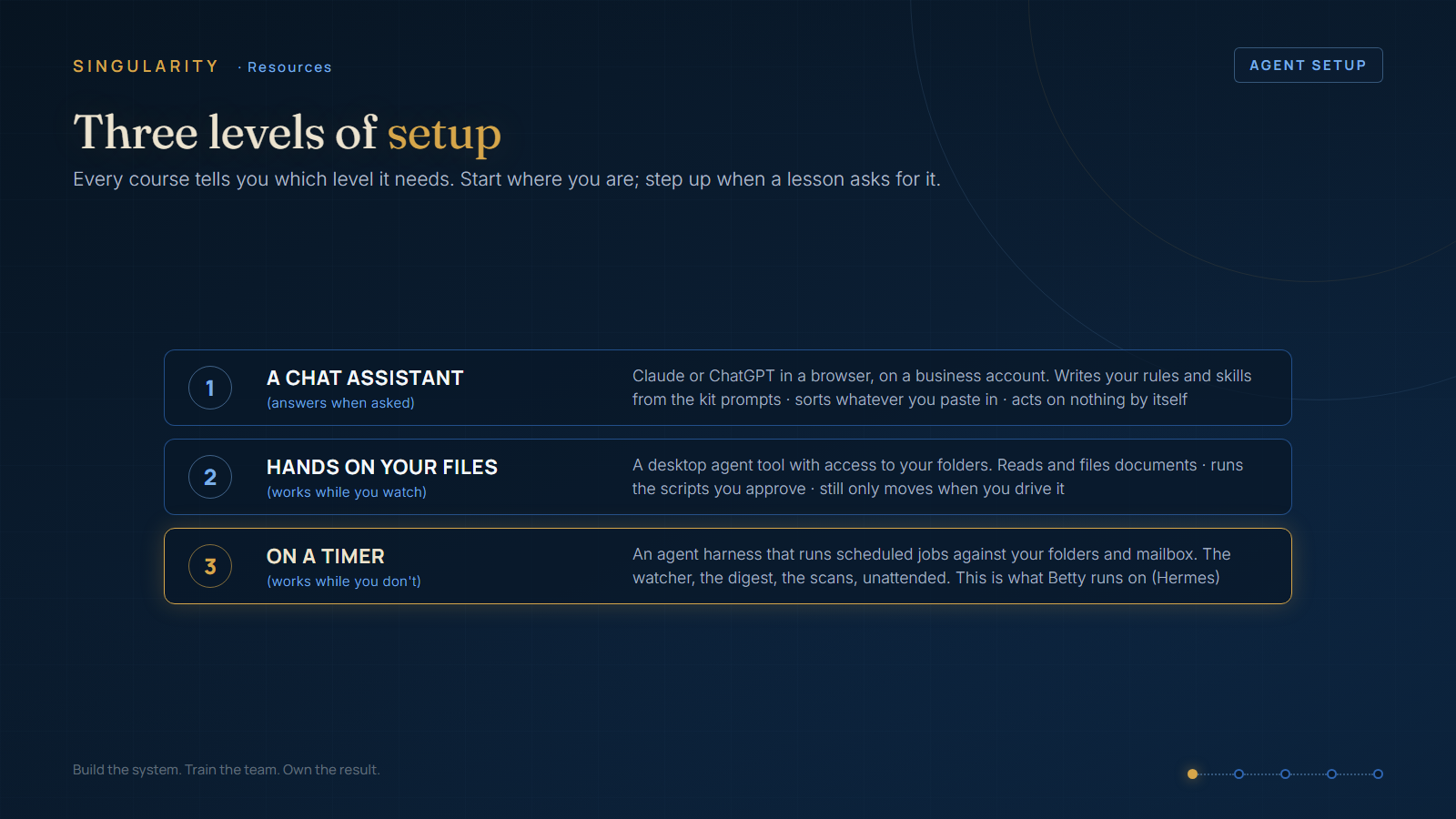
🔧 One tool, three levels
⚠️ First, the tool that matters. These courses work on your real files and folders. A chat website (Claude or ChatGPT in a browser) cannot see your files. It also gets confused between its web features and your course steps. So do not build this system in a chat website. Install an agent tool on your computer instead. The next section shows you how. The three levels below are three ways to use that one tool - you do not need three products.
Level 1 - conversation only. You talk, the agent writes. You use your installed agent tool, but you only ask it to draft documents: your governance files, your skills, your registers, and your scripts. You review each one and save it. Every kit prompt in these courses runs at Level 1.
Level 1 never acts on its own. It cannot watch your inbox. It cannot run at 6am. You do those actions yourself.
Level 2 - hands on your files. The same agent tool, with folder access switched on. The tool can read and write your real folders. It can run the scripts you approve. Now the scaffold script creates real folders. The filing skill files real documents. The registers really update.
But the tool works only while you sit there and drive it. Level 2 is like a fast offsider who works only while you are on site.
Level 3 - on a timer. Level 3 is an agent harness that runs scheduled jobs with nobody watching. The jobs run against your folders and your mailbox. Examples: the 6am digest, the 5-minute watcher, the drift scan. Betty runs at Level 3 (the tool is called Hermes).
Level 3 gives you the results you bought the course for. At Level 3 the safety rules also stop being optional. That is why the courses teach governance before timers.
The honest sequence: build at Level 1, rehearse at Level 2, run at Level 3. No work at a lower level is wasted. The files you generate are the same files the higher levels run.
🛠️ Install your agent tool (pick one)
All four tools below can read and write your folders and run approved commands. Pick one. Do not install two - two agents on the same folders cause double-processing (see the edge cases below).
Option 1 - Claude Code (our recommendation). This is the tool the real system in these courses runs on. It comes as a desktop app and as a terminal command, and both work from the same install.
- Go to claude.com/claude-code and download the desktop app for Windows or Mac. Or, in a terminal, run:
npm install -g @anthropic-ai/claude-code - Open it and sign in with your Claude account. You need a paid plan (Pro or Team).
- Point it at a practice folder first. Ask it: "list the files in this folder." When it answers, file access works.
- Leave the permission prompts ON. The tool asks before it writes or runs anything. That is a feature, not a nuisance.
Option 2 - Claude Desktop. The friendlier face of the same idea. Good if a terminal window worries you. Download from claude.com/download, sign in, and switch on file/folder access in Settings. It can read and edit documents in folders you approve.
Option 3 - OpenAI Codex. The right choice if your business already pays for ChatGPT (Plus, Business, or higher - Codex is included).
- In a terminal, run:
npm install -g @openai/codex(needs Node.js 22 or later). Mac users can use Homebrew instead. - Run
codexand pick "Sign in with ChatGPT." Your browser opens to finish the sign-in. - Same first test: point it at a practice folder and ask it to list the files.
Option 4 - Kimi Code CLI (the budget option). Runs Moonshot's Kimi K3 model. Capable, and the membership costs less than the others.
- Run:
npm install -g kimi(or the install script from kimi.com's help pages). - On Windows it uses Git Bash as its engine room - install Git for Windows first if the first launch fails.
- Sign in with a Kimi membership or an API key. Then do the same practice-folder test.
Also exists: Gemini CLI (npm install -g @google/gemini-cli). It works the same way. But Google ended its free tier in June 2026, so it now needs a paid API key. We do not recommend it as your first tool today.
Whichever you pick: the courses' kit prompts work in all of them, word for word. The tool names change monthly. The six questions below do not.
🧭 Choosing a tool: the six questions
Ask these questions of ANY agent tool before you commit. The tool names change monthly. The questions do not change.
- Can it run jobs on a schedule? For example "every 5 minutes, weekdays" - not only "when I open the app".
- Can it read and write my folders? And can it run a saved script when I approve one?
- Can it read my mailbox - and can I limit it to read-only and draft-only? Draft-without-send is the feature that makes the send gate possible. Some tools can only send or do nothing. Those tools force flags-only mode. Flags-only mode works, but it is weaker.
- Does it keep a record of what it did? Every action, and you can find the record later. No record means no trust.
- Can I cap what it spends? You want a monthly limit on the AI account, and visible usage.
- Can I make it ask first? Look for approvals, an approved list, and a practice mode. Half of a good setup is restraint, not capability.
Five yeses out of six is a workable tool. A "no" on question 4 or 6 means you walk away.
⚠️ Edge cases that cause real problems (and what to do)
- Your computer sleeps, and the 6am job never runs. An agent on a timer needs a computer that stays awake. Set the PC's power plan to never sleep (screen off is fine). Or accept gaps and add a catch-up job. Betty runs on an ordinary office PC. For this reason Betty has a restart-watcher and a morning catch-up job.
- OneDrive "online-only" files look real but are empty placeholders. If your company drive uses files-on-demand, the agent can open a 0-byte placeholder. Right-click your governed folders. Set "Always keep on this device."
- Company email usually needs approval from IT. Your mail may be Microsoft 365 or Google Workspace under an IT provider. If so, mailbox access for a tool needs admin consent. Book 30 minutes with the person who runs your IT. Ask for READ-ONLY access first. Add sending permission only after the send gate is built. Do not go around IT with your personal password.
- Shared mailboxes work differently. admin@ and accounts@ often exist as shared mailboxes. Shared mailboxes have their own permission model. Name every mailbox you want watched when you talk to IT.
- Antivirus may block your first script. A new script that moves files can look suspicious to endpoint protection. Run practice mode first. If the script disappears or is blocked, ask IT to add your scripts folder to the approved list. Do not disable the protection.
- Privacy is a setting, not a feeling. Use a business account with the AI provider. Check that "use my data for training" is OFF. Keep client-identifying documents out of free personal accounts. If you operate under NDAs, read the provider's data terms once, properly.
- Never run two copies. Never run two agents against the same folders and mailbox. Never run the same agent on two machines against the same folders. Everything gets processed twice, and the registers disagree. One machine, one owner.
- Money: it costs less than you fear, but cap it anyway. Betty's whole fleet runs at about $10 a working day at full load. A quiet watcher check costs about $0.0003. Your first month will cost cents to dollars. Set a monthly cap on the AI account anyway. Caps make bold experiments safe.
- Time zone. Set the agent's timezone explicitly. If you do not, your "6am digest" can arrive at the wrong hour.
- Back up before you switch anything on. Keep your governed folders in a synced location with version history. OneDrive or SharePoint version history counts. An agent that can never delete, plus a drive with version history, is a very forgiving combination.
- Tell your staff. An unannounced AI that answers email destroys trust. Say what it reads. Say what it may never do. Say who is allowed to change its rules - only you. The courses call this the sabotage rule.
💡 Recommendations (what we would do)
- Install one agent tool today (Claude Code is our pick) on a paid business account. Start at Level 1: run the kit prompts as conversation, and save what they produce.
- Do not buy or install a Level 3 harness until a lesson tells you it is needed. The course order is deliberate: rules first, engine second.
- When you go to Level 3: give the agent its own PC, or a machine that stays on. Start with read-only email. Run practice mode on every new skill for a week. Set the monthly cap.
- Keep one page in your governance folder called
agent-setup.md. Record which tool, which account, which mailboxes, the cap, and the date. This page helps you later, and it helps any auditor.
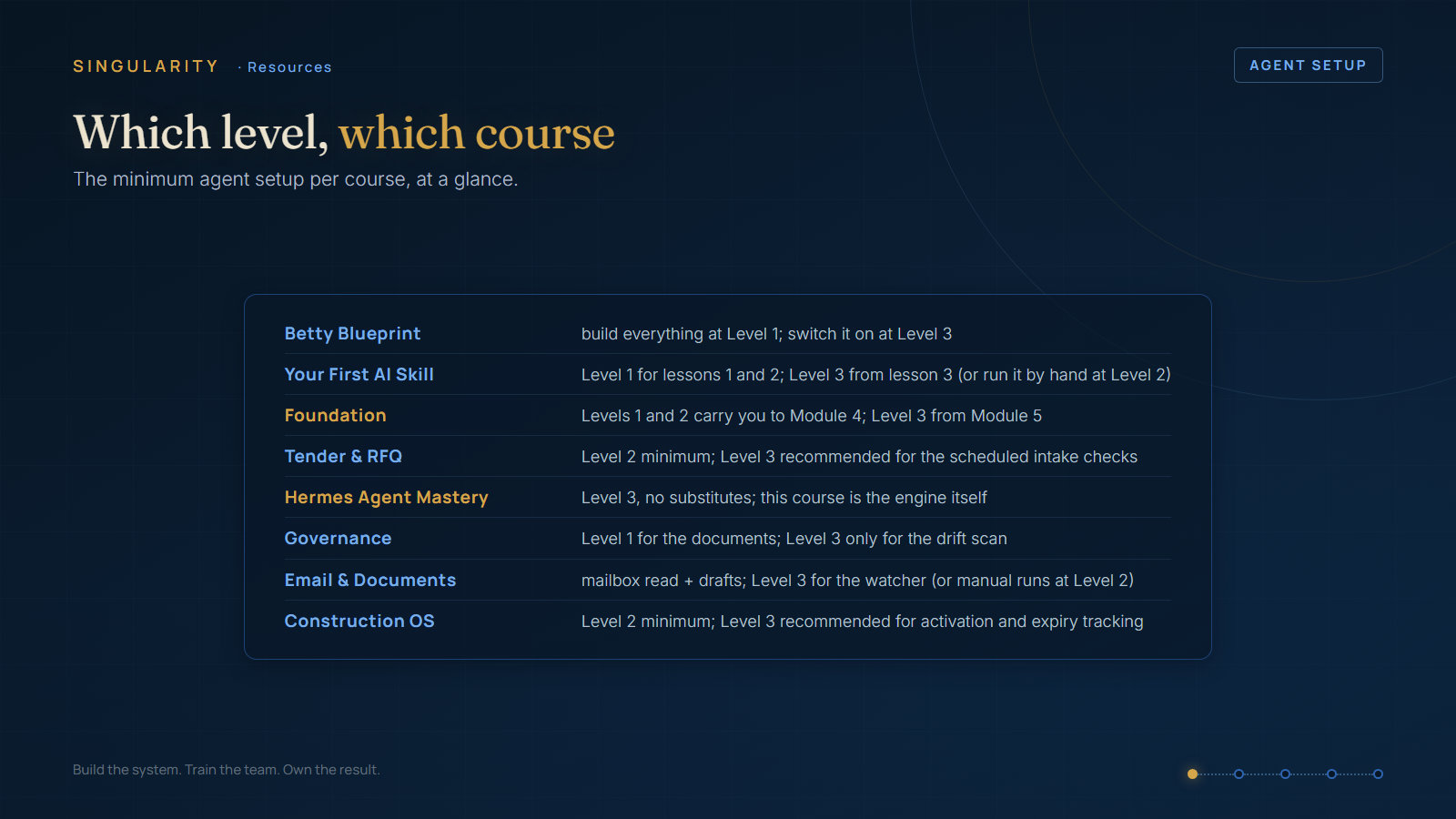
✅ The master checklist (each course trims this to its own gate)
☐ An agent tool installed (Claude Code, Claude Desktop, Codex, or Kimi) - not a chat website ☐ A paid business AI account, with data-training turned off ☐ The practice-folder test passed: the tool listed the files in a folder I named ☐ I know which level this course needs (see the course's Before-you-start page) ☐ My governed folders live on a synced drive with version history, marked always-on-this-device ☐ IT conversation done (if company email is involved): read-only first, admin consent arranged ☐ Monthly spending cap set on the AI account ☐ The machine that runs timed jobs stays awake (Level 3 only) ☐ One machine, one agent, one owner - no second copy anywhere ☐ Timezone set; a test job ran at a known time and arrived on time (Level 3 only) ☐ My staff know what the agent is, what it reads, and that only I change its rules